

META TITLE
How to Manage Google Privacy Settings and Protect Your Personal Data.
META DESCRIPTION:
Learn how to manage Google privacy settings, review the data Google collects, control activity tracking and improve your account privacy without giving up useful features.
How to Manage Google Privacy Settings and Protect Your Personal Data
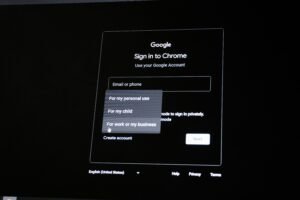
Google is part of everyday life for billions of people. Whether you’re searching the web, watching YouTube videos, using Google Maps, checking Gmail or browsing the internet on Chrome, you may be creating information that can be connected to your Google account.
This doesn’t necessarily mean that Google is doing something wrong. Many of these features are designed to make Google’s services more useful and personalised. However, it is still important to understand what information is being collected and how you can conrol it.
Learning how to manage Google privacy settings can give you greater control over your personal information without requiring you to stop using Google services.
In this guide, we’ll look at the types of information connected to your Google activity, the privacy controls available to you and practical ways to review your settings.
What Information Does Google Collect?
Google operates many different services, so the information associated with your activity can come from several sources.
Depending on which services you use, this may include:
- Search activity
- YouTube activity
- Location information
- Device information
- Voice and audio activity
- Information associated with your Google account
- Interactions with Google services
Not every user has the same data stored. What Google can associate with your account depends largely on the services you use and the settings you’ve chosen.
Why Does Google Collect Your Information?
Data collection can serve several purposes.
Google may use information to:
- Provide its services
- Personalise your experience
- Remember preferences
- Improve products
- Provide relevant recommendations
- Help maintain security
- Show personalised advertising, depending on your settings
For example, Google Maps can provide more useful recommendations when location-related information is available.
The important question isn’t simply whether data is collected. It’s whether you understand what is being collected and have control over your choices.
How to Check Your Google Privacy Settings?
If you want to understand how to manage Google privacy settings, start by reviewing your Google Account.
Google provides a dedicated Privacy Checkup that allows you to review important privacy choices in one place.
You can use it to examine areas such as:
- Information you share
- Activity settings
- Personalisation
- Account privacy choices
Instead of changing everything at once, review each setting and decide whether it provides a benefit that is worth the information involved.
1. Review Your Web and App Activity
One important area to examine is your Web and App Activity settings.
This setting can affect whether certain activity from Google services is saved to your acount to help personalise your experience.
Depending on your preferences, you may be able to:
- Review saved activity
- Delete existing activity
- Adjust automatic deletion
- Turn activity saving On or OFF
Before changing this setting, consider how much personalisation you actually want.
If you value personalised search results and recommendations, you may prefer to keep some activity available. If privacy is a higher priority, you may want to limit how much activity is retained.
2. Review Your YouTube History
YouTube is another important part of your Google privacy settings.
Your YouTube activity can influence:
- Video recommendations
- Search suggestions
- Personalised experiences
If you don’t want your viewing and search activity retained indefinitely, review your YouTube history settings.
You can also delete individual activities or manage automatic deletion options where available.
This can be particularly useful if multiple people use the same device or if you don’t want older viewing activity influencing future recommendations.
3. Check Your Location Settings
Location information can provide useful features, particularly when using services such as Google Maps.
However, location information can also reveal a great deal about your routines and movements.
Review your Google location-related settings and consider:
- Which devices share location information
- Which apps have location access
- Whether you need location-based personalisation
- How long certain location information is retained
You don’t necessarily have to disable every location feature.
Instead, choose settings that provide the right balance between convenience and privacy for you.
4. Manage Ad Personalization
If you frequently see advertisements related to things you’ve searched for or watched, advertising personalisation may be one reason.
Google provides controls that allow users to review advertising-related preferences.
You can decide whether personalised advertising is something you want.
Turning off personalised advertising doesn’t necessarily mean you’ll stop seeing advertisements. It generally means the advertisements may be less tailored to your interests.
This is an important distinction: less personalised advertising doesn’t mean no advertising.
Check Which Apps Have Access to Your Google Account
Third-party apps and services may sometimes request access to information associated with your Google account.
Over time, you may forget which services you’ve connected.
Review your third-party connections and remove access for services you no longer use or trust.
This is especially useful if you’ve experimented with many apps, websites or online tools over the years.
Don’t Forget Google Assistant and Voice Activity
If you use voice-based Google services, some interactions may be associated with your account depending on your settings.
Review your voice and audio-related activity if this is a concern for you.
Ask yourself:
- Do I need this activity saved?
- Am I comfortable with the current settings?
- Should older activity be deleted?
Privacy settings are most useful when you understand why you’re changing them.
Should You Turn Everything Off?
Not necessarily.
A common mistake when learning about digital privacy is assuming that the safest approach is to disable every available setting.
That isn’t always practical.
For example, turning off certain data collection may reduce personalisation or remove features you actually find useful.
A better approach is to follow a simple rule:
Keep the features you value and limit the data collection you don’t need.
Privacy is about control, not necessarily complete avoidance.
How Google Privacy Connects With Online Tracking?
Google isn’t the only organisation involved in online tracking.
Websites, advertising networks, apps and analytics services can also collect information about your online behaviour.
If you want to understand the broader picture, read our guide on How Websites Track You Online (And How to Reduce It).
Understanding tracking as a whole makes it easier to understand why individual privacy settings matter.
Simple Google Privacy Checklist
Use this quick checklist when reviewing your account:
- Review your Google Privacy Checkup
- Check Web and App Activity
- Review YouTube history
- Examine location-related settings
- Review advertising personalisation
- Check third-party app access
- Review voice and audio activity
- Delete information you no longer want stored where appropriate
- Revisit your settings periodically
You don’t have to make every change in one sitting.
Even reviewing one privacy setting today can be a useful step toward better control over your personal data.
A Trusted Resource for Google Privacy
If you want to explore Google’s privacy controls directly, the Official Google Account Privacy & Personalization page provides access to privacy-related settings and controls.
Using Google’s own account tools is preferable to relying on unofficial guides when you’re changing account-level privacy settings, because the available options can change over time.
Conclusion
Learning how to manage Google privacy settings doesn’t mean you have to stop using Google.
Instead, it’s about understanding what information is associated with your activity and deciding which features are worth the data involved.
Take time to review your Web & App Activity, YouTube history, location settings, advertising preferences and third-party connections. You may discover settings you haven’t looked at in years.
Digital privacy works best as an ongoing habit rather than a one-time project. As you create new accounts, install apps and use new online services, regularly reviewing your privacy choices can help you maintain greater control over your personal information.
FAQs
1. How do I manage Google privacy settings?
Start by opening your Google Account’s privacy controls and using Google’s Privacy Checkup. Review activity, personalisation, location, advertising and third-party access settings based on your preferences.
2. How can I protect my personal data on Google?
Review your Google privacy settings regularly, limit activity that you do not want stored, remove unnecessary third-party access, use a strong password and enable two-step verification.
3. What does Google know about me?
Depending on the services you use and your settings, Google may associate information such as search activity, YouTube activity, location information, device information and account activity with your use of its services.
4. Can I delete my Google activity?
Google provides controls that allow users to review and delete certain types of saved activity. Available options depend on the type of activity and the relevant service.
5. Can I turn off personalized Google ads?
You can review Google’s advertising settings and turn off or limit ad personalization where that option is available. You may still see advertisements, but they may be less personalized.
6. How do I remove third-party apps from my Google Account?
Review the third-party apps and services connected to your Google Account. Select services you no longer need and remove their access.
7. Is Google Privacy Checkup useful?
Yes. Privacy Checkup can help you review several important Google privacy settings and identify areas where you may want to change your preferences.
8. Should I enable two-step verification on my Google Account?
Yes. Two-step verification adds an additional layer of security and can help protect your account if someone obtains your password.
9. How often should I check my Google privacy settings?
Review your settings every few months or whenever you start using a new Google service, purchase a new device or notice unusual activity on your account.
very useful info for people like me who are concerned about their online security.
Thanks Samara.
Pingback: How to Create a Personal Budget When You Don’t Know Where Your Money Goes - Hanzoworld